

- Nodes: Talos VMs on your vCenter, cloned from a Talos template, that join the appliance’s own Omni.
- Cluster: a Kubernetes cluster on those nodes, from Omni’s golden cluster template.
- Hand-over: if you choose to, the cluster is added to Celum, ready to onboard.
Switch it on
At deployment, tick Experimental: PoC nodes and cluster in the OVA’s form. Or set it inappliance.yaml, at deployment or later:
celum-appliance poc; see Over SSH.
Before you start
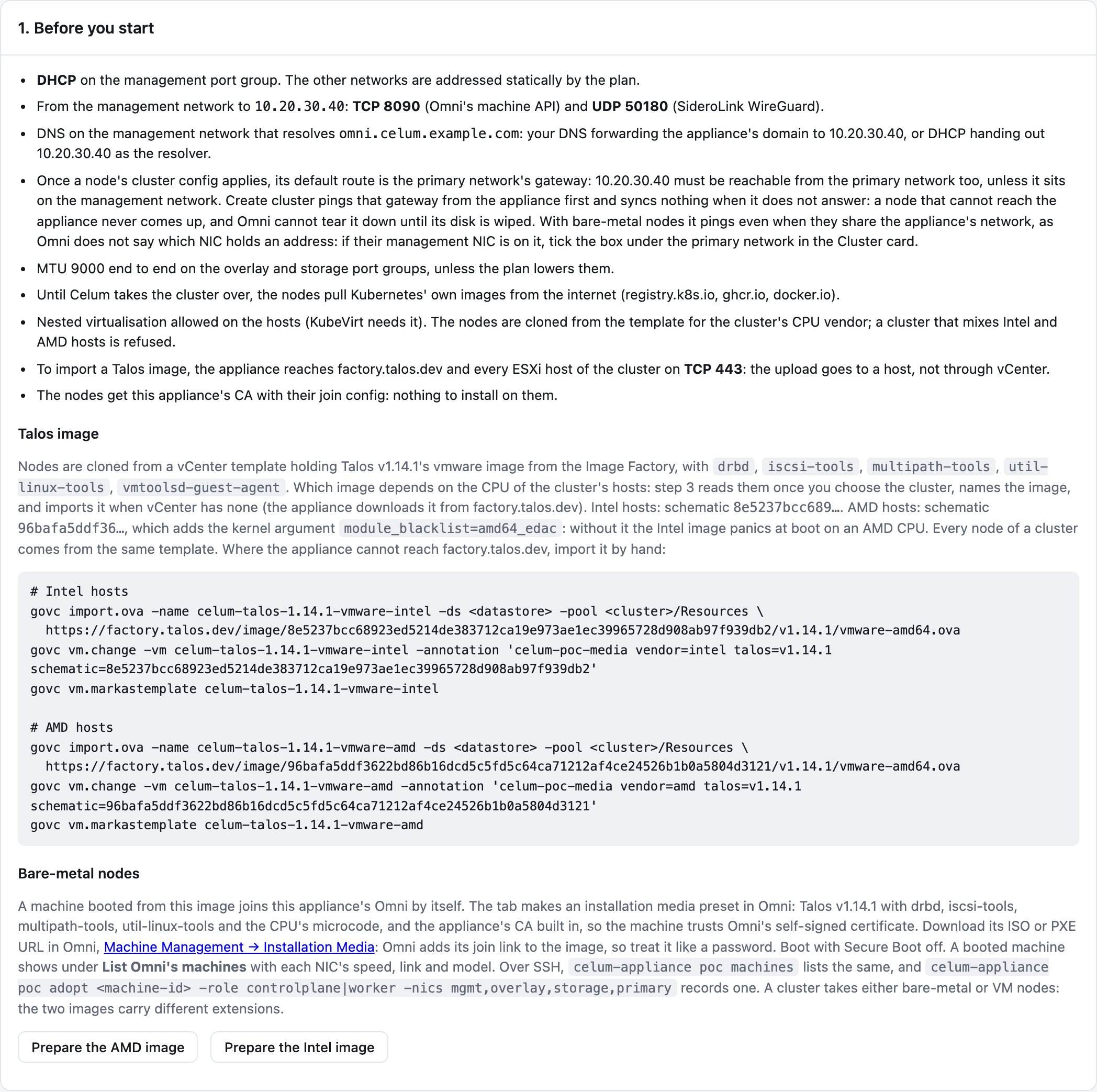
- DHCP on the management port group. The plan addresses the other networks statically.
- From the management network to the appliance: TCP 8090, Omni’s machine API, and UDP 50180, SideroLink’s WireGuard.
- DNS on the management network that resolves
omni.DOMAIN: forward the appliance’s domain to the appliance, or have DHCP hand out the appliance as the resolver. - The appliance reachable from the primary network. Once a node’s cluster configuration applies, its default route is the primary network’s gateway. Create cluster pings that gateway first, and creates nothing when it does not answer: a node that cannot reach the appliance never comes up, and Omni cannot tear it down until its disk is wiped.
- MTU 9000 end to end on the overlay and storage port groups, unless you lower it in the plan.
- Internet access for the nodes: until Celum takes the cluster over, they pull Kubernetes’ own images from
registry.k8s.io,ghcr.ioanddocker.io. - Nested virtualisation allowed on the hosts, which KubeVirt needs.
- One CPU vendor per cluster: a vCenter cluster that mixes Intel and AMD hosts is refused.
- To import a Talos image: the appliance reaches
factory.talos.dev, and every ESXi host of the cluster on TCP 443. The upload goes to a host, not through vCenter.
The Talos image
The nodes are cloned from a vCenter template holding Talos v1.14.1’s VMware image from the Image Factory, with thedrbd, iscsi-tools, multipath-tools, util-linux-tools and vmtoolsd-guest-agent extensions. Intel and AMD hosts need different images: the AMD one adds the kernel argument module_blacklist=amd64_edac, without which the Intel image panics at boot on an AMD CPU.
You rarely need to do anything here. Once you choose a cluster in step 3, the tab names the image its hosts need and imports it into vCenter when none of the templates holds it. Where the appliance cannot reach factory.talos.dev, the card shows the govc commands to import it by hand.
Build the cluster
1
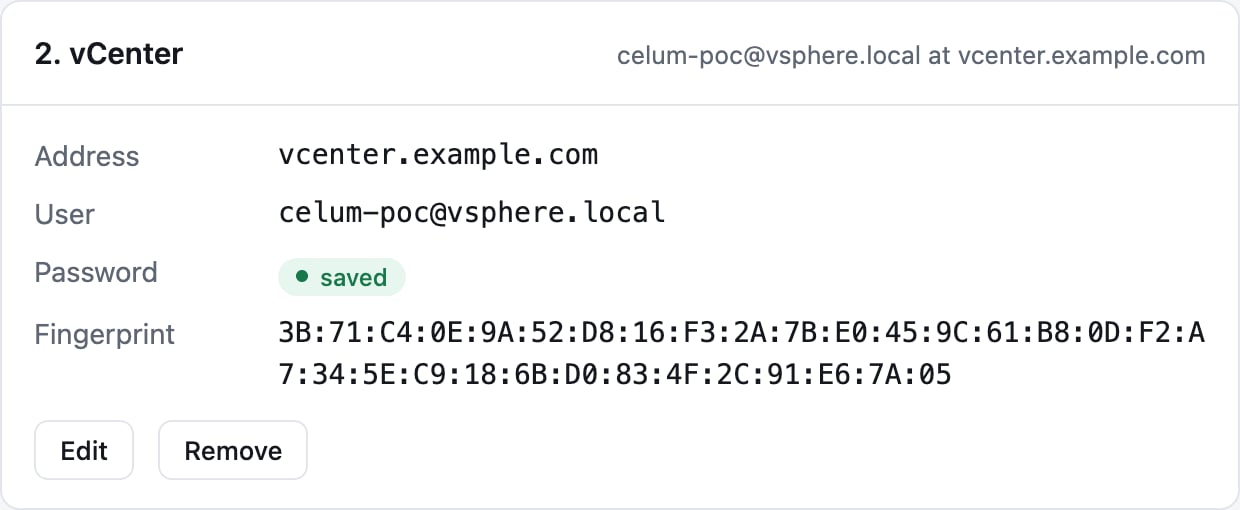
Connect vCenter
2
Plan the nodes
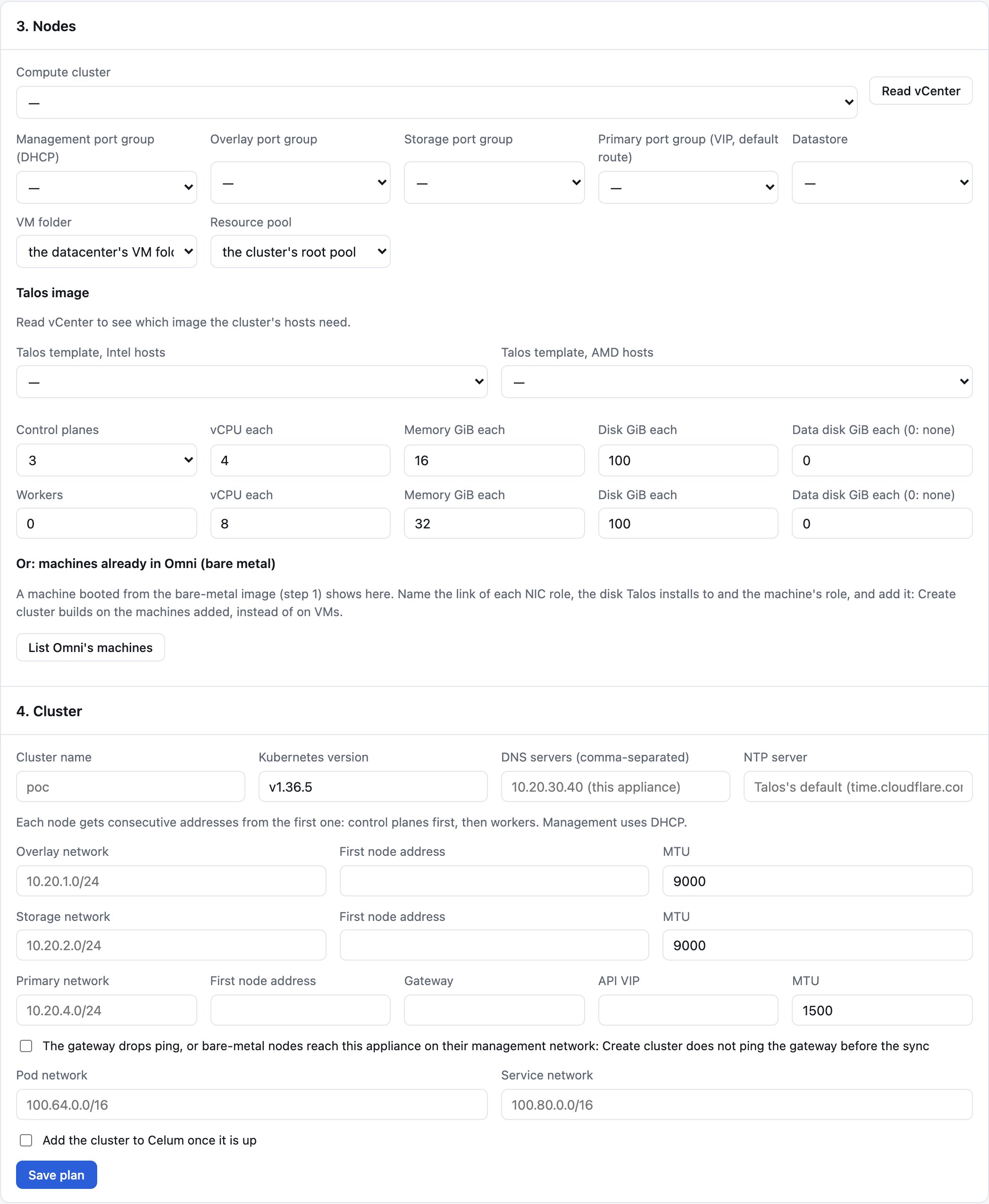
- the Compute cluster the VMs run on;
- four port groups: Management (DHCP), Overlay, Storage and Primary, which carries the API VIP and the default route;
- the Datastore, the VM folder and the Resource pool. By default these are the datacenter’s VM folder and the cluster’s root pool. New VM folder… and New resource pool… create one; vSphere offers resource pools only on a cluster with DRS on;
- the Talos templates for Intel and AMD hosts. If the hosts’ image is missing, Import the … image into vCenter downloads it and makes the template;
- the number of Control planes (1, 3 or 5) and Workers, with vCPU, memory and disk for each. A data disk above 0 adds a second disk to each node, for example for Ceph.
3
Plan the cluster
In 4. Cluster, set:
- the Cluster name and Kubernetes version;
- DNS servers and an NTP server. Blank uses the appliance for DNS, and Talos’s default for NTP;
- for the Overlay, Storage and Primary networks: the network in CIDR form, the First node address and the MTU. The primary network also takes its Gateway and the API VIP. Each node gets consecutive addresses from the first one: control planes first, then workers;
- the Pod and Service networks.
4
Run

- Create nodes clones the VMs from the template for the hosts’ CPU vendor, then waits until Omni shows each one ready.
- Create cluster builds the cluster on the recorded nodes, once, and waits until the control plane is healthy and the Kubernetes API answers. It then writes a kubeconfig to
/var/lib/celum-appliance/poc/CLUSTER.kubeconfig, with a token that does not expire, and adds the cluster to Celum if you asked for that. The template is applied once: later changes go through Celum. If a run stops after the cluster was created, Finish cluster completes it. - Check machines shows whether each recorded VM is still in vCenter, where, and whether it joined Omni.
- Tear down removes what was recorded: the Omni cluster and its Celum registration, then the VMs, then their Omni machines.
Over SSH
Every step of the tab is also acelum-appliance poc command:
journalctl -u 'celum-appliance-poc@*'. celum-appliance poc with no arguments lists every command.